
Our Google Drive
I’ve shared a link with you to our course google drive folder, How to Read an Essay.
I will use it to store documents you’ll need to access, like PDFs and the assignment calendar.
Please remember– you can only access the Google Drive and documents in the drive if you’re logged into BMail. If you need to send me a request to access the drive, you’re probably logged into a gmail account. I only share access through you BMail address.
You can access the drive in several different ways.
- Through your Google Drive. Open your BMail Account. Choose the icon that looks like a square composed of dots in the top right of your screen. In the menu along the right, you’ll see “Shared With Me”. Select “Shared With Me”. You’ll find our drive.
- Through MyCourses. Start with MyCourses. Choose the Menu Item, “Shared Google Drive”.
Create Your Submissions Folder
Rdanberg
Go to our to the Individual Submissions Folder in our Shared Drive.
I’ve shared a link with you to our Google Drive. In our class drive, you’ll find a folder called, “Individual Submissions”. Follow the link.
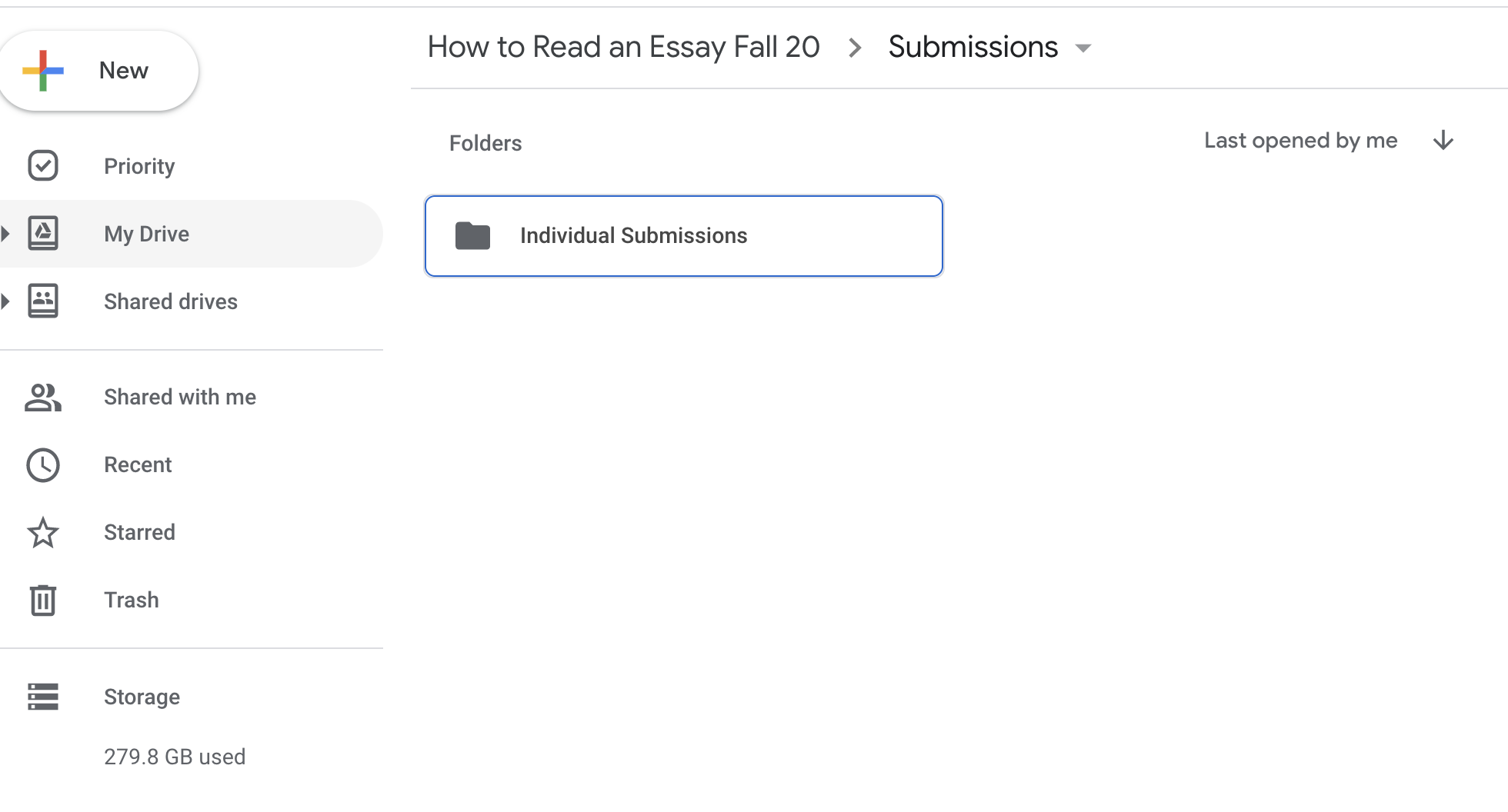
When you arrive at the Individual Submissions folder, open it, select “New” from the menu to the left, then “New Folder”. Name the Folder <Your Last Name>.

Open your folder, then create three more folders by selecting “New” from the menu to the left, then “New Folder”. You will create three folders: Reflective Papers, Critical Essays, and Project X (in the example, it’s called “March to December”. Please name yours, “Project X”).

 robertdanberg